Gallery
Smart Palette Saving
<%@ Page Language="C#" Description="dotnetCHARTING Component" %>
<%@ Register TagPrefix="dotnet" Namespace="dotnetCHARTING" Assembly="dotnetCHARTING"%>
<%@ Import Namespace="System.Drawing" %>
<%@ Import Namespace="System.Drawing.Drawing2D" %>
<html xmlns="http://www.w3.org/1999/xhtml">
<head>
<title>.netCHARTING Sample</title>
<script runat="server">
void Page_Load(Object sender,EventArgs e)
{
Chart.Type = ChartType.Combo;
Chart.Size = "700x350";
Chart.TempDirectory = "temp";
Chart.Debug = true;
//Chart.Title = ".netCHARTING Sample";
// Demonstrates how to save a custom palette to the xml file.
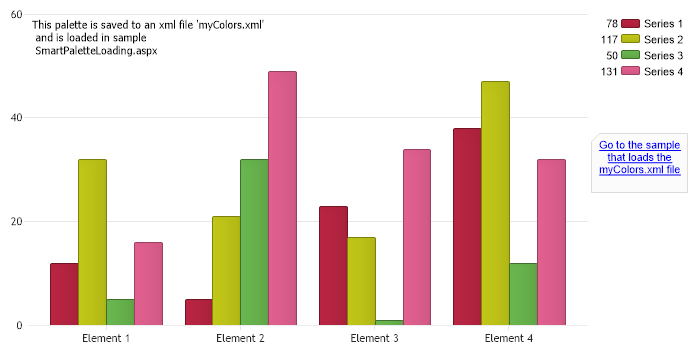
Chart.ChartArea.Label.Text = "This palette is saved to an xml file 'myColors.xml'\n and is loaded in sample\n SmartPaletteLoading.aspx";
Annotation an = new Annotation("Go to the sample that loads the myColors.xml file");
an.URL = "SmartPaletteLoading.aspx";
an.Label.Color = Color.Blue;
an.Label.Font = new Font("Arial",8,FontStyle.Underline);
an.Position = new PointF(590,130);
Chart.Annotations.Add(an);
// *DYNAMIC DATA NOTE*
// This sample uses random data to populate the chart. To populate
// a chart with database data see the following resources:
// - Classic samples folder
// - Help File > Data Tutorials
// - Sample: features/DataEngine.aspx
SeriesCollection mySC = getRandomData();
// here we'll use two different methods just for demonstration purposes. One will not have any effect.
// Calling this method from the series collection will generate the nameValuePairs for Series only.
SmartPalette ncp = mySC.GetSmartPalette(new Color[] { Color.Red, Color.Green, Color.Orange });
ncp = mySC.GetSmartPalette(Palette.Three);
// Now get the element colors from series. Both name color pairs cant be used because
// element colors will override the series colors so this one wont be used, just demonstrated.
SmartPalette ncp2 = mySC[0].GetSmartPalette(Palette.Three);
// This will also work:
SmartPalette ncp3 = mySC[0].GetSmartPalette(Chart.Palette);
// Save the series colors.
ncp.SaveState("temp/myColors.xml");
// Use them on a chart.
Chart.SmartPalette = ncp;
// Add the random data.
Chart.SeriesCollection.Add(mySC);
}
SeriesCollection getRandomData()
{
SeriesCollection SC = new SeriesCollection();
Random myR = new Random(1);
for(int a = 1; a < 5; a++)
{
Series s = new Series();
s.Name = "Series " + a.ToString();
for(int b = 1; b < 5; b++)
{
Element e = new Element();
e.Name = "Element " + b.ToString();
e.YValue = myR.Next(50);
s.Elements.Add(e);
}
SC.Add(s);
}
return SC;
}
</script>
</head>
<body>
<div style="text-align:center">
<dotnet:Chart id="Chart" runat="server" Width="568px" Height="344px">
</dotnet:Chart>
</div>
</body>
</html>
<%@ Page Language="vb" Description="dotnetCHARTING Component" %>
<%@ Register TagPrefix="dotnet" Namespace="dotnetCHARTING" Assembly="dotnetCHARTING"%>
<%@ Import Namespace="System.Drawing" %>
<%@ Import Namespace="System.Drawing.Drawing2D" %>
<html xmlns="http://www.w3.org/1999/xhtml">
<head>
<title>.netCHARTING Sample</title>
<script runat="server">
Sub Page_Load(ByVal sender As Object, ByVal e As EventArgs)
Chart.Type = ChartType.Combo
Chart.Size = "700x350"
Chart.TempDirectory = "temp"
Chart.Debug = True
'Chart.Title = ".netCHARTING Sample";
' Demonstrates how to save a custom palette to the xml file.
Chart.ChartArea.Label.Text = "This palette is saved to an xml file 'myColors.xml'" & Constants.vbLf & " and is loaded in sample" & Constants.vbLf & " SmartPaletteLoading.aspx"
Dim an As Annotation = New Annotation("Go to the sample that loads the myColors.xml file")
an.URL = "SmartPaletteLoading.aspx"
an.Label.Color = Color.Blue
an.Label.Font = New Font("Arial",8,FontStyle.Underline)
an.Position = New PointF(590,130)
Chart.Annotations.Add(an)
' *DYNAMIC DATA NOTE*
' This sample uses random data to populate the chart. To populate
' a chart with database data see the following resources:
' - Classic samples folder
' - Help File > Data Tutorials
' - Sample: features/DataEngine.aspx
Dim mySC As SeriesCollection = getRandomData()
' here we'll use two different methods just for demonstration purposes. One will not have any effect.
' Calling this method from the series collection will generate the nameValuePairs for Series only.
Dim ncp As SmartPalette = mySC.GetSmartPalette(New Color() { Color.Red, Color.Green, Color.Orange })
ncp = mySC.GetSmartPalette(Palette.Three)
' Now get the element colors from series. Both name color pairs cant be used because
' element colors will override the series colors so this one wont be used, just demonstrated.
Dim ncp2 As SmartPalette = mySC(0).GetSmartPalette(Palette.Three)
' This will also work:
Dim ncp3 As SmartPalette = mySC(0).GetSmartPalette(Chart.Palette)
' Save the series colors.
ncp.SaveState("temp/myColors.xml")
' Use them on a chart.
Chart.SmartPalette = ncp
' Add the random data.
Chart.SeriesCollection.Add(mySC)
End Sub
Function getRandomData() As SeriesCollection
Dim SC As SeriesCollection = New SeriesCollection()
Dim myR As Random = New Random(1)
For a As Integer = 1 To 4
Dim s As Series = New Series()
s.Name = "Series " & a.ToString()
For b As Integer = 1 To 4
Dim e As Element = New Element()
e.Name = "Element " & b.ToString()
e.YValue = myR.Next(50)
s.Elements.Add(e)
Next b
SC.Add(s)
Next a
Return SC
End Function
</script>
</head>
<body>
<div style="text-align:center">
<dotnet:Chart id="Chart" runat="server" Width="568px" Height="344px">
</dotnet:Chart>
</div>
</body>
</html>
- Sample FilenameSmartPaletteSaving.aspx
- VersionLegacy (Pre 3.0)
- Uses DatabaseNo